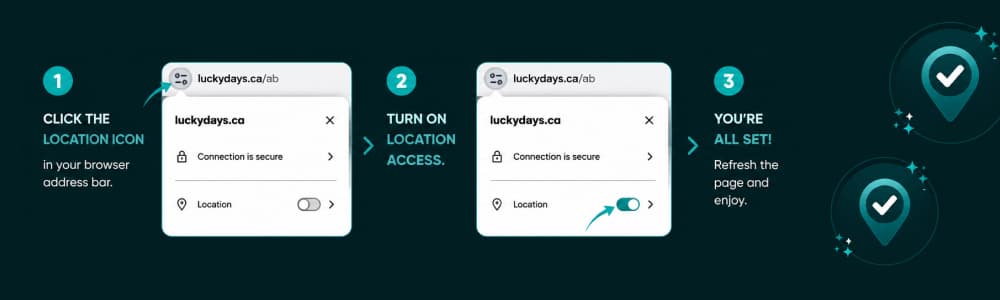
How to Enable Location Access
LuckyDays Casino Alberta must verify your physical location before you can play any games. This is required for regulatory and compliance purposes.
If location access is not enabled, you will not be able to launch or play games.
Follow the steps below for your browser or mobile app.
Google Chrome
- Open luckydays.ca/ab in Chrome.
- Select the site controls icon beside the website address.
- Find Location and turn it on, or select Allow when Chrome asks for permission.
- Refresh the page.
On a computer, you can also go to:
Chrome Settings → Privacy and security → Site settings → Location
Make sure LuckyDays is allowed to access your location.
Safari
On iPhone or iPad
- Open Settings.
- Go to Privacy & Security → Location Services.
- Make sure Location Services is turned on.
- Open Safari and visit luckydays.ca/ab.
- Select Allow when Safari asks to use your location.
- Refresh the page.
On Mac
- Open Safari.
- Go to Safari → Settings → Websites → Location.
- Find LuckyDays and select Allow.
- Return to the site and refresh the page.
LuckyDays App on Android
- Open your phone’s Settings.
- Go to Location → App location permissions.
- Select the LuckyDays app.
- Choose Allow only while using the app.
- Make sure your device’s main Location setting is turned on.
- Reopen the LuckyDays app.
The exact wording may vary slightly depending on your Android device.
LuckyDays App on iPhone
- Open Settings.
- Go to Privacy & Security → Location Services.
- Make sure Location Services is turned on.
- Select the LuckyDays app.
- Choose While Using the App.
- Turn on Precise Location.
- Reopen the LuckyDays app.
Why Location Access Is Required
Location verification helps LuckyDays confirm that you are physically located in a region where real-money gaming is permitted.
Your location is checked for compliance and regulatory purposes. Without successful location verification, access to all games will remain blocked.
Still Unable to Play?
Make sure location access is enabled for LuckyDays, turn off any VPN or location-masking service, fully close and reopen the browser or app, and then refresh the page.